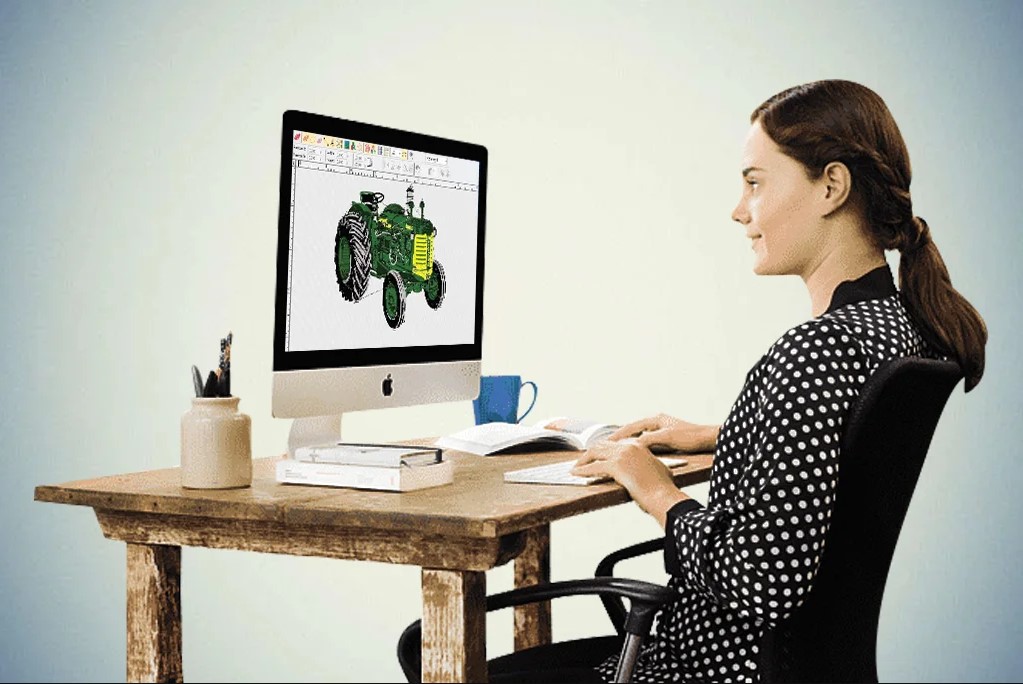
Convert JPG and PNG to PES File Free for Embroidery Machines
Introduction
You’ve got a killer design—a family photo, a cute logo, or a trending graphic—and you’re itching to stitch it on a hoodie, tote, or baby onesie. Your Brother or Babylock machine is ready, but it only speaks PES. You don’t want to drop cash on paid software or services, so you hunt for free ways to make it work. Good news: it’s totally possible to convert JPG and PNG images into usable PES files without spending a cent. The trick is knowing which tools deliver clean results and how to tweak them for pro-level stitches. Whether you’re a hobbyist gifting personalized pieces or testing the waters of a side hustle, these free methods save you money while keeping quality high. Here’s your straightforward guide to convert JPG to PES File Free and avoid common pitfalls.
Why Free Conversion Works for Many Projects
Free tools have come a long way. They handle simple logos, cartoons, bold graphics, and even basic photos with surprising accuracy. You avoid subscription fees or per-design charges, making it ideal for occasional projects or experimenting with ideas. The best part? Many free options export directly to PES, the format Brother and Babylock machines love, so you load the file and start stitching right away.
Best Free Tools for the Job
Ink/Stitch stands out as the top free choice. It’s a plugin for Inkscape, an open-source vector editor. Download both, and you get powerful tracing, manual editing, and direct PES export. It handles underlay, pull compensation, and density adjustments—features paid tools charge for. Another solid option is SophieSew, a simple online converter that auto-digitizes basic images. For quick SVG-to-PES needs, Embroidery Reader works well after tracing in a free vector tool like Canva.
Prepare Your Image First
Success starts with a strong source. Use high-resolution JPG or PNG files—at least 300 DPI—with clear contrast. Low-res images turn into blurry stitches. Remove backgrounds to isolate the design. Simplify colors to six or fewer to reduce thread changes. Boost contrast and crop tight. A clean, bold image traces better and stitches cleaner.
Step-by-Step Conversion with Ink/Stitch
Open Inkscape and import your image. Select it, go to Path > Trace Bitmap, and choose Brightness Cutoff or Edge Detection. Adjust the threshold until outlines look sharp. Delete the original photo, then ungroup the vector paths. Assign stitch types: satin for borders, tatami for fills, running for outlines. Add underlay manually—zigzag for large areas, edge-run for satin. Set density (0.4 mm for satin, 4 mm spacing for tatami) and pull compensation (12–18 % for knits). Preview the stitch path, fix jumps, and export as PES. The whole process takes 15–30 minutes once you’re familiar.
Tips for Cleaner Free Results
Simplify early—fewer colors mean fewer thread changes and less chance of errors. Manually add underlay even if the tool skips it; this prevents puckering on stretchy fabrics. Shorten jumps under 8 mm to hidden travel runs. Test on scrap fabric matching your final project—run 100 stitches and check tension and detail. One test run reveals issues before you commit to good blanks.
Limitations of Free Conversion
Free tools excel with simple designs but struggle with complexity. Fine details blur, gradients muddy, and fur textures flatten. No advanced features like automatic pull compensation or puff support. High-volume or client work often needs paid software for consistency. Free online converters can add watermarks or limit exports, and some sites pose security risks.
When Free Isn’t Enough
Photorealistic portraits, small text, or puffy effects usually require manual refinement free tools lack. If you stitch more than ten projects a month or handle paid orders, the small investment in Embrilliance Essentials or Hatch Starter pays off fast through saved time and blanks.
Creative Projects That Shine with Free Conversion
Pet portraits on bandanas. Kid drawings on pillows. Simple logos on dad hats. “Merry Christmas” with family names on stockings. One clean PES file unlocks endless personalized gifts that feel handmade.
Safety and Best Practices
Stick to trusted open-source tools like Ink/Stitch. Avoid shady download sites that bundle malware. Back up your files. Always test on scrap fabric. Keep designs simple for best free results.
The Future of Free Tools
AI improvements make auto-tracing smarter every year. Community updates add features monthly. Free conversion gets closer to paid quality with every release.
Conclusion
Free image to PES conversion opens the door to affordable, personalized embroidery. Tools like Ink/Stitch let you experiment, create gifts, and test ideas without upfront costs. Simplify designs, add manual tweaks, and test relentlessly for surprisingly good results. For simple projects, dive in and enjoy the savings. For pro-level quality or high volume, paid tools become worth it fast.
Grab your next JPG or PNG tonight, try a free converter, and stitch something fun by morning. Your machine is waiting—no wallet required to start.
Related Post
A Simple Guide to Luxury Watches by a Famous Fashion Brand
Luxury watches are more than just tools to check time. They are symbols of style,…