
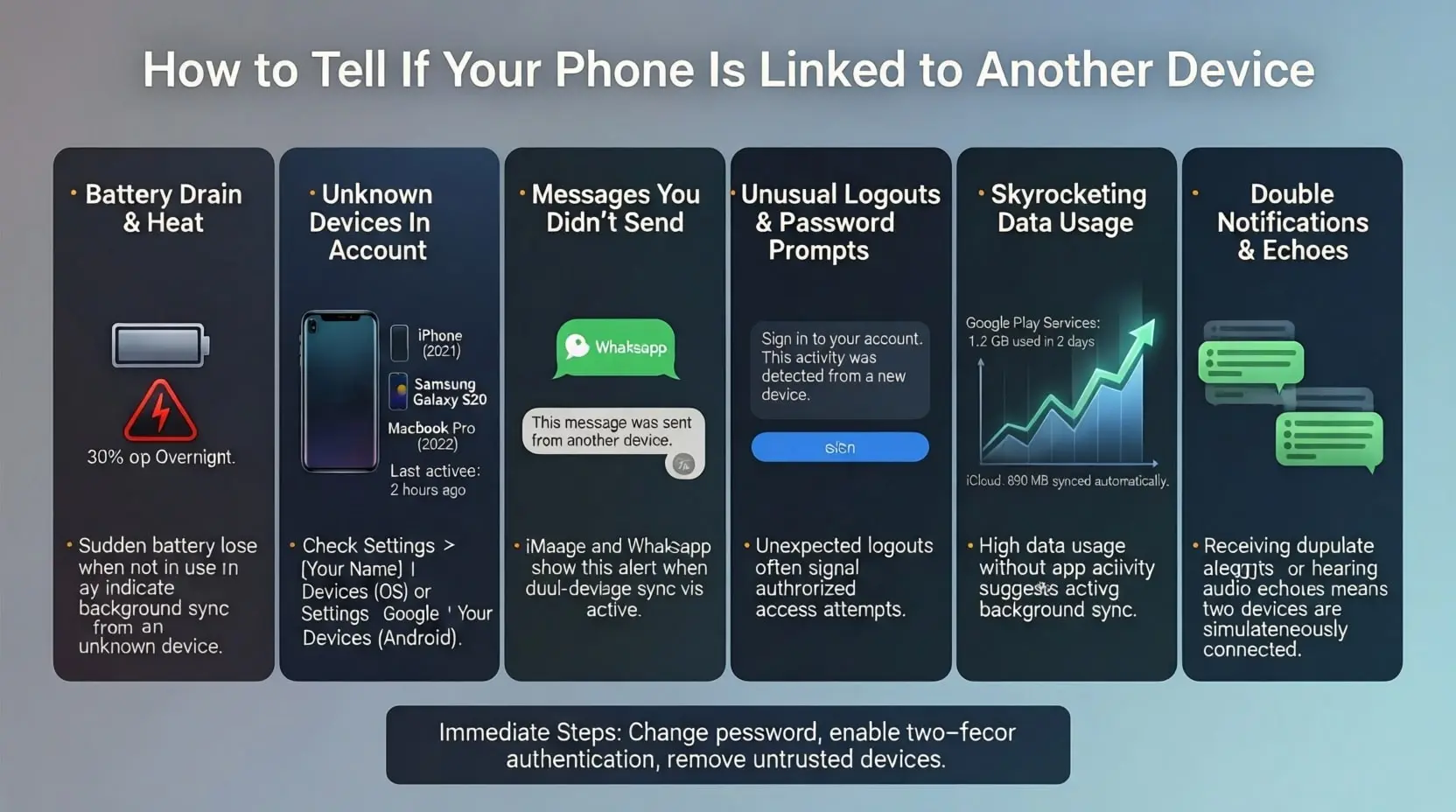
What Signs Tell If a Phone Is Linked to Another Device
If you have ever picked up your phone and felt like someone else is watching, you are not crazy. Millions of people share the same worry every day. So “how do I know if my phone is linked to another device?” The truth is, your phone will almost always leave clear clues when it is connected to something it should not be. You just need to know where to look.
Most of the time, the link happens through your Google account on Android or your Apple ID on iPhone. Someone logs in on another phone, tablet, or even a laptop, and suddenly everything you do shows up there too. Messages pop up, photos upload, and locations update in real time. The good news is that both Google and Apple make it pretty easy to spot these unwanted connections if you check the right places.
Strange Battery Drain and Heat When You Are Not Using It
Your phone gets hot in your pocket, and the battery drops 30% while you sleep. You did not watch videos or play games. That is one of the biggest red flags. When another device stays signed in to your account and keeps syncing mail, photos, or messages in the background, it forces your phone to work all night. I have seen phones lose half their charge overnight just because a family member’s old tablet was still logged in.
Unknown Devices in Your Google or Apple Account
This is the fastest way to find out the truth. On Android, open Settings > Google > Manage your Google Account > Security > Your devices. On iPhone, go to Settings > [Your Name] > Devices. If you see a phone, tablet, or computer you do not recognize, that is it. Someone else is linked. Tap it and hit “Remove” or “Sign out” immediately. Do this check once a month. It takes ten seconds and saves a lot of headaches.
Messages or Calls You Never Sent or Received
You open WhatsApp, iMessage, or Telegram and see conversations you do not remember. Or your friends say they got messages from you when your phone was in another room. That happens when the same account is active on two devices at once. WhatsApp even shows “This message was sent from another device” under the text. Same with iMessage. If you see that, someone else has your sessions open.
How Do I Know If My Phone Is Linked to Another Device? Check These Spots Right Now
Here is the exact list most people miss:
- Google Maps Timeline shows locations you never visited.
- Photos appear in your gallery that you did not take.
- Two-factor codes arrive for logins you did not start.
- Find My iPhone or Find My Device lists extra phones.
- Storage shows “Other” or “System Data” suddenly huge because of background sync.
Any one of these means your phone is linked somewhere else.
Random Logouts or Password Change Prompts
Your Gmail, Instagram, or banking app suddenly logs you out and asks for the password again. That usually happens when someone else tries to log in from another device and triggers the security system. It is annoying, but it is also a gift. It tells you something is wrong before real damage happens.
Data Usage Skyrockets for No Reason
You get a warning from your carrier that you used 80% of your data in two days, but you barely opened TikTok. Background sync is the culprit again. When another phone or tablet keeps pulling your emails, backing up photos, or refreshing social media with your account, it eats data fast. Open your phone’s data usage menu and look at Google Play Services or iCloud. If those numbers are crazy high, start looking for linked devices.
You Hear Echoes or See Double Notifications
This one is rare, but it happens when two phones are signed into the same iMessage or WhatsApp Web at the same time. You make a call and hear your own voice coming back with a delay. Or you get the same notification twice, one second apart. That echo means the audio or data is bouncing between two active devices.
Quick Steps to Cut the Link Today
- Change your Google or Apple ID password right now. This kicks every device out.
- Turn on two-factor authentication if it is off.
- Go through the device list and remove everything you do not trust.
- On iPhone, turn off iCloud sync for a minute, then turn it back on. It forces a fresh login.
- Install WhatsApp or Telegram again and log out of all other sessions from the settings menu.
Do these steps, and nobody can stay linked without your new password.
The bottom line is simple. Your phone is smarter than most people think. It will tell you when something is wrong. You just have to listen to the signs: fast battery drain, unknown devices in your account, messages you did not send, sudden logouts, or data disappearing. Check those spots once in a while and you will sleep better.
So if you are still asking, “How do I know if my phone is linked to another device?” start with your Google or Apple account device list today. Nine times out of ten, the answer is sitting right there waiting for you to kick it out.
Related Post

Advanced Commercial AV & Security Systems by Richmond AV
In today’s fast-paced business environment, having reliable technology is no longer a luxury—it’s a necessity.…